Kotak Neo
How To Connect Your Kotak Neo Account?
Buildalgos.com simplifies algorithmic trading by offering easy integration with multiple brokers, including Kotak Neo. This guide walks you through the steps to connect your Kotak Neo account with BuildAlgos, enabling you to automate your trading strategies effortlessly. You'll learn how to enable TOTP, generate API credentials, and configure your environment for a seamless trading experience.
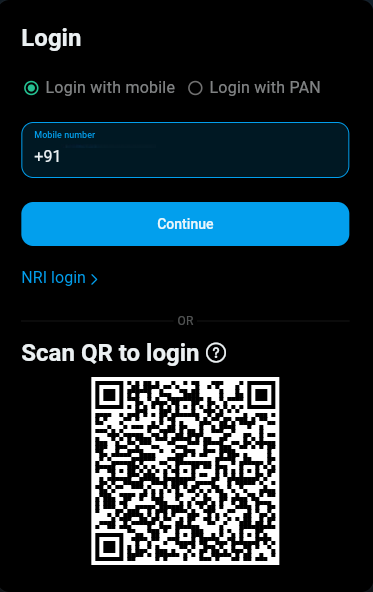
Step 1: Log In to Kotak Neo
- Make sure you have an active Kotak Neo account.
- Visit: https://www.kotaksecurities.com/platform/kotak-neo-trade-api
- Enter your registered mobile number and password.
Step 2: Set Up MPIN
If you haven’t already created an MPIN during your first Kotak Neo login:
- Open the Kotak Neo trading terminal
- Go to Account Details
- Set a 6-digit MPIN
This MPIN is mandatory for completing the broker login process.
Step 3: Neo Trade API
- Click on the More option in the top-right corner

- From the menu, select Trade API

- Copy the Default Application TOKEN (no need to create a new app)

- Save this Access Token securely — you will need it for login and data APIs.
Step 4: Register TOTP Authentication
What is TOTP?
A Time-Based One-Time Password that refreshes every 30 seconds through an authenticator app.
Steps:
- In the right-hand menu, click TOTP Registration

- On the next page, verify using your mobile number and OTP
- Install Google Authenticator or Microsoft Authenticator
- Scan the QR code displayed on the screen
- Enter the 6-digit TOTP
- You should see “TOTP successfully registered”
⚠️ Common Issue: “Invalid TOTP”
Make sure your phone’s time is set to Automatic
(Settings → Date & Time → Set Automatically)
Step 5: Find Your UCC (Unique Client Code)
- Click your profile icon in the top-right corner

- Select Account Details
- Your UCC is displayed as “Unique Client Code.”

- UCC Format:
AB123(5 characters) - Save this code — you need it for BuildAlgos authentication.
Step 6: Add Broker
- Go to https://buildalgos.com/dashboard/brokers
- Click on Add Broker
- Select Kotak Neo from the list

Step 7: Enter Credentials
- Client ID → Enter your Unique Client Code.
- Account Name → Enter display name of your choice.
- API Key → Enter the Access Token copied in Step 3.
- Phone Number → Enter your registered mobile number.
- MPIN → Enter the MPIN you set in Step 2.
- Click Add Account

Step 8: Start Trading!
- Once you've successfully added your broker account, it will appear on your dashboard. Click the "Login" button to proceed.
- Upon entering valid credentials, a "Logged In Successfully" message will be displayed.
- To start trading with your Kotak Neo account, click the play icon located under the 'Trade' column.
- To stop/pause trading with your Kotak Neo, click the pause icon located under the 'Trade' column.
By completing the steps in this guide, you've successfully set up your Kotak Neo account to work with BuildAlgos. You're now ready to optimize your strategies and make smarter, data-driven decisions. If you need help or run into any issues, feel free to consult the BuildAlgos resources. Happy trading!